
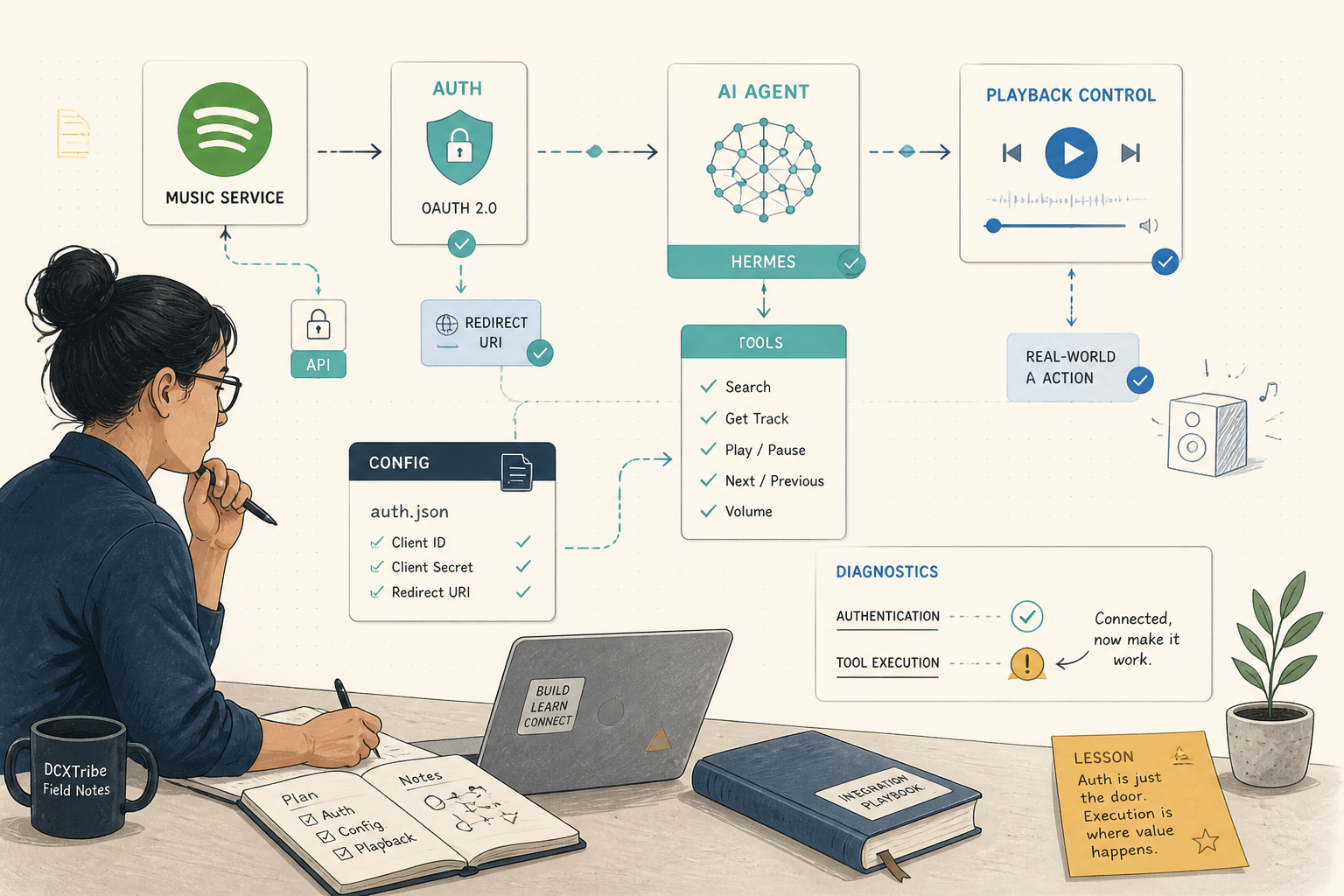
A simple guide for non-technical users
This guide explains how to connect Spotify to Hermes, so your AI agent can help control music from chat.
For example, once it works, you can ask:
Play a song by Coldplay.
Or:
What is playing now?
Skip this song.
Search for lo-fi music.
Create a focus playlist.
This is not just about music. It is a simple way to understand how an AI agent connects to real tools.
---
What You Are Setting Up
The basic setup looks like this:
You
→ Hermes
→ Spotify
→ Your speaker / laptop / phone
Hermes needs permission to access Spotify. That permission is given through Spotify’s login system.
This is called OAuth.
In simple terms:
Spotify asks: “Do you allow Hermes to access your Spotify account?” You approve. Hermes receives a token. Hermes can now talk to Spotify for you.
---
What You Need Before Starting
You need:
1. A Spotify account
2. A Hermes setup that is already running
3. Access to the Hermes terminal
4. A Spotify Developer app
5. Spotify Premium if you want play / pause / skip control
Spotify Free may still allow some search and library actions, but playback control usually needs Spotify Premium.
---
Step 1: Create a Spotify Developer App
Go to the Spotify Developer Dashboard.
Create a new app.
Use any simple name, for example:
hermes-agent
For the redirect URI, use:
http://127.0.0.1:43827/spotify/callback
This redirect URI is important. Copy it exactly.
Then save the app.
After saving, open the app settings and copy the Client ID.
Do not share your Client Secret publicly.
For this setup, Hermes mainly needs your Client ID.
---
Step 2: Start Spotify Login in Hermes
In your Hermes terminal, run:
/opt/hermes/.venv/bin/hermes auth spotify
If that command does not work, try:
/opt/hermes/.venv/bin/hermes auth spotify login --client-id YOUR_SPOTIFY_CLIENT_ID
Replace this:
YOUR_SPOTIFY_CLIENT_ID
with the Client ID from your Spotify Developer app.
Hermes will generate a Spotify login link.
Open that link in your browser.
Spotify will ask you to approve access.
Click Agree.
---
Step 3: Understand the Localhost Issue
This is the part that confused me at first.
The redirect URI uses:
127.0.0.1
This means “this machine.”
But if Hermes is running on a remote server and your browser is on your laptop, they are not the same machine.
So this can happen:
127.0.0.1 from your browser = your laptop
127.0.0.1 from Hermes = the server
That means the browser may fail after you click Agree.
This is normal in a remote server setup.
The browser may show a failed page, but the address bar will contain something useful.
It will look like:
http://127.0.0.1:43827/spotify/callback?code=REDACTED&state=REDACTED
Copy the full URL from the browser address bar.
Paste it back into Hermes.
Hermes can then exchange the code for Spotify tokens.
---
Step 4: Check Whether Spotify Is Connected
Run:
hermes auth spotify status
If your setup uses the full Hermes path, use:
/opt/hermes/.venv/bin/hermes auth spotify status
You want to see:
spotify: logged in
If you still see:
spotify: logged out
then Hermes may have saved the Spotify token in the wrong place or wrong format.
---
Step 5: Check Where Hermes Stores Auth
In some setups, Hermes expects the auth file here:
/opt/data/auth.json
Not here:
/opt/data/home/.hermes/auth.json
And not here:
/opt/data/.hermes/auth.json
A useful check is:
echo $HERMES_HOME
In my setup, Hermes home was:
/opt/data
So the expected auth file was:
/opt/data/auth.json
The simple lesson:
Do not guess where Hermes stores auth. Check where Hermes thinks its home folder is.
---
Step 6: Make Sure the Auth File Has the Right Shape
Hermes expects Spotify credentials under:
providers.spotify
The structure should look conceptually like this:
{
  "providers": {
    "spotify": {
      "access_token": "REDACTED",
      "refresh_token": "REDACTED",
      "token_type": "Bearer",
      "expires_at": 1780212488,
      "client_id": "YOUR_SPOTIFY_CLIENT_ID",
      "redirect_uri": "http://127.0.0.1:43827/spotify/callback",
      "auth_type": "oauth_pkce"
    }
  }
}
Do not publish your real access token or refresh token.
Also note that expires_at should be an absolute timestamp, not simply:
3600
This was one of the issues in my setup.
---
Step 7: Enable the Spotify Tool
Even after Spotify is logged in, the Spotify tool may still be disabled.
Run:
hermes tools list
If Spotify is disabled, enable it:
hermes tools enable spotify
You want to see:
✓ Enabled: spotify
Important lesson:
Spotify logged in
does not always mean
Spotify tool enabled
Both must be true.
---
Step 8: Restart or Start a Fresh Session
If you enabled the Spotify tool while Hermes was already running, the current session may not load it immediately.
So if Hermes says something like:
Tool 'spotify_search' does not exist.
restart Hermes or begin a fresh session.
This helps Hermes reload the available tools.
---
Step 9: Run the Real Test
Do not stop at:
spotify: logged in
That only proves login works.
Run a real test:
play a song by coldplay
If needed, open Spotify on your laptop or phone first so Spotify can detect an available device.
A successful chain looks like this:
You ask Hermes
→ Hermes checks Spotify auth
→ Hermes finds the song
→ Hermes finds your device
→ Hermes transfers playback
→ Spotify starts playing
That is the real success point.
Not login.
Not token exchange.
Playback.
---
Common Problems and Simple Fixes
Problem: Spotify still says logged out
Check:
Is auth.json in the right location?
Is Spotify stored under providers.spotify?
Does the auth file include client_id and redirect_uri?
Is expires_at an absolute timestamp?
---
Problem: Browser redirect fails
This is likely because Hermes is on a remote server.
Use manual callback capture:
Open Spotify login URL
Click Agree
Copy the failed callback URL
Paste it back into Hermes
---
Problem: Spotify tool is disabled
Run:
hermes tools enable spotify
Then restart Hermes or start a fresh session.
---
Problem: No active device
Open Spotify on your laptop or phone first.
Then ask Hermes again.
Spotify needs an available device before playback can start.
---
Final Checklist
Use this before giving up:
[ ] Spotify Developer app created
[ ] Redirect URI added correctly
[ ] Client ID copied
[ ] Hermes Spotify login started
[ ] Spotify approval completed
[ ] Callback URL copied back if localhost failed
[ ] Token exchange successful
[ ] hermes auth spotify status shows logged in
[ ] auth.json is in the right location
[ ] Spotify is stored under providers.spotify
[ ] Spotify tool is enabled
[ ] Hermes restarted or fresh session started
[ ] Spotify app open on a real device
[ ] Playback test completed
---
Simple Explanation
This setup has three layers:
Login layer     → Can Hermes access Spotify?
Tool layer      → Is the Spotify tool enabled?
Action layer    → Can Hermes actually play music?
Do not confuse the first layer with success.
The real test is the third layer.
If Hermes can play music, the integration works.
---
Closing Note
Spotify is a good first integration because the risk is low.
If it fails, nothing serious breaks.
But it teaches the important pattern of AI agents:
connect
authenticate
load tools
check state
take action
verify outcome
That same pattern will matter for calendars, notes, tasks, email, research, and future personal AI workflows.
All views are my own. This guide is shared for learning and experimentation.