
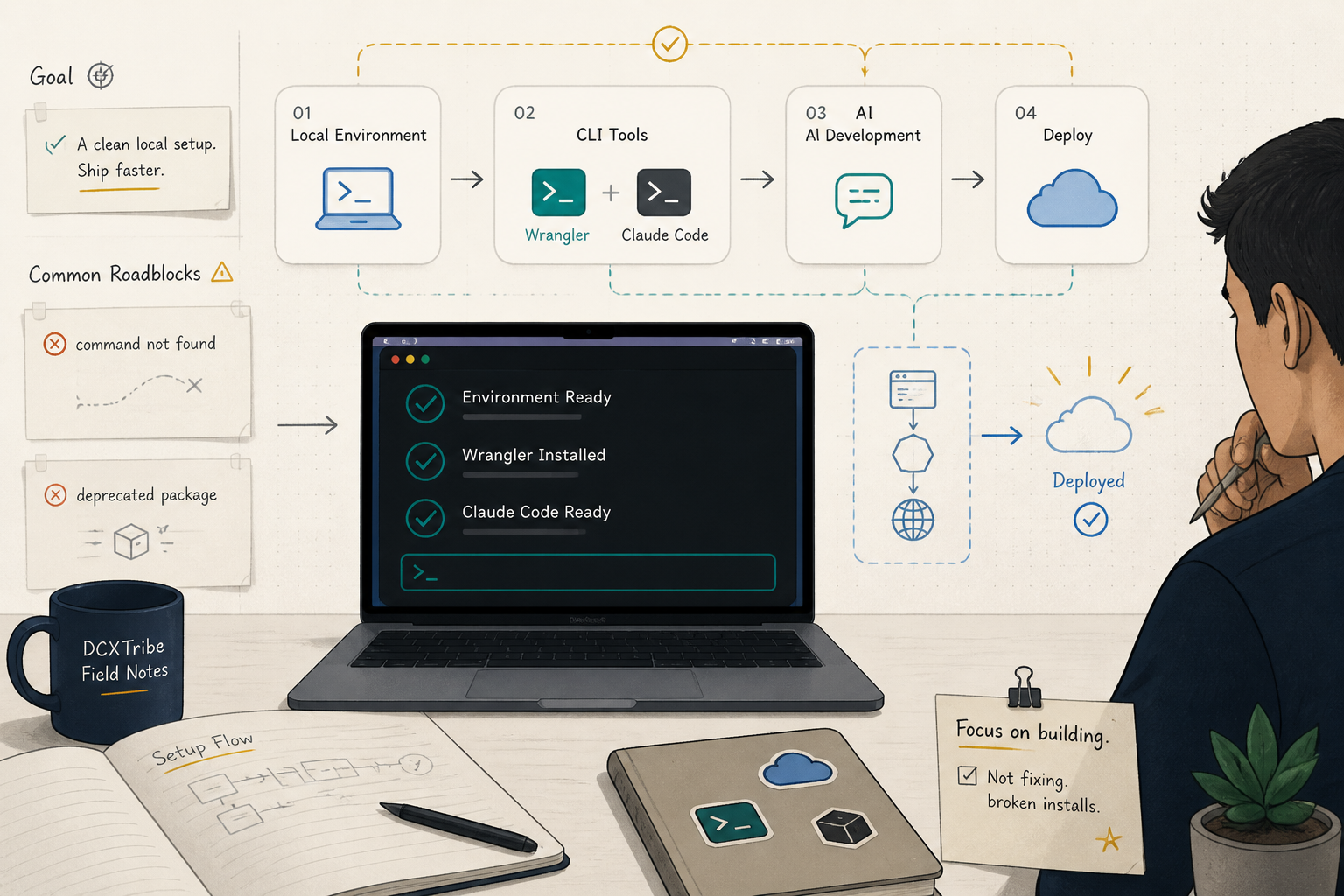
This guide helps you install two command-line tools — Wrangler (to deploy your projects to Cloudflare) and Claude Code (an AI assistant that edits your project from the terminal) — and avoid the errors that trip most people up on the first try.
---
What You're Setting Up
In plain terms: one tool to deploy your website or app, and one AI tool to help you build it.
You → Claude Code (helps you edit) → Wrangler (publishes) → Cloudflare (hosts it live)
- Wrangler = the official Cloudflare tool for publishing Workers and sites.
- Claude Code = Anthropic's terminal assistant. It reads and edits the files in whatever folder you open it in.
- CLI = Command-Line Interface. A tool you type commands into, rather than click.
---
Before You Start
1. A Mac (these steps also work on Linux; Windows users can use WSL or PowerShell)
2. Node.js and npm installed (for Wrangler)
3. A free Cloudflare account
4. A paid Claude account (Pro, Max, Team, or Anthropic API access)
Check that Node and npm are ready:
node -v
npm -v
You should see a version number for each. If you get "command not found," install Node first from nodejs.org.
---
Important Safety Note
When you log in to Cloudflare or Claude, the tools store a credential on your machine so you don't have to log in every time.
Treat these like passwords. Don't paste your tokens into public chats, screenshots, or public code repositories.
---
Step 1: Install Wrangler (the RIGHT package)
There are two Wrangler packages on the internet. One is old and broken. Install this one:
npm install -g wrangler
Do not install @cloudflare/wrangler — that's the deprecated version 1, and it will fail with a 404 (see Common Problems below).
You should see: a successful install with no red error text.
---
Step 2: Confirm the Wrangler version
wrangler --version
You should see something like:
⛅️ wrangler 4.101.0
As long as it starts with 4 (or higher), you're good. If it starts with 1, you have the wrong version — jump to Common Problems.
---
Step 3: Log in to Cloudflare
wrangler login
This opens your browser. Approve the access request. Then confirm it worked:
wrangler whoami
You should see: your Cloudflare account email listed.
---
Step 4: Install Claude Code
Anthropic's recommended install for macOS is the native installer. It needs no Node.js and auto-updates itself in the background. Open Terminal and paste:
curl -fsSL https://claude.ai/install.sh | bash
This downloads and installs the claude binary into ~/.local/bin/.
Heads-up: ~/.local/bin/ is the same directory Wrangler can land in. If you ever see a "file already exists" error on a Cloudflare or Claude Code install, that's why — the cleanup is one line (see Common Problems).Open a new terminal window (so it picks up the updated PATH), then confirm:
claude --version
You should see: a version number printed.
If you get command not found, your shell can't see ~/.local/bin/ yet. Add it once:
echo 'export PATH="$HOME/.local/bin:$PATH"' >> ~/.zshrc
Close the terminal, open a new one, and try claude --version again.
---
Step 5: Open Claude Code in your project
This is the part most people get wrong. Claude Code works on the folder you open it in. So move into your project first, *then* start it:
cd ~/Documents/claude_projects/YourProject
claude
On the first run it will ask you to:
- Log in to your Claude account in the browser.
- Confirm it's allowed to access the current folder. Say yes if it's your project.
You should see: a chat prompt in your terminal, ready for instructions.
---
Common Problems and Fixes
Problem: Wrangler install fails with a "404" error
You installed the old package by mistake. The error mentions @cloudflare/wrangler@1.21.0 and a failed download. Cloudflare no longer hosts that old binary, so it can't finish.
npm uninstall -g @cloudflare/wrangler
npm install -g wrangler
Problem: "EEXIST: file already exists"
A leftover file from a previous attempt is blocking the new install. Remove that one file, then install again.
rm ~/.local/bin/wrangler
npm install -g wrangler
If it *still* happens, check what's there:
ls -l ~/.local/bin/wrangler
That tells you if another tool keeps recreating it.
Problem: `wrangler --version` shows 1.x
Same fix as the 404 — you're on the deprecated version:
npm uninstall -g @cloudflare/wrangler
npm install -g wrangler
Problem: `claude: command not found` after install
The install put the binary in ~/.local/bin/, but that directory isn't on your PATH yet. Add it once:
echo 'export PATH="$HOME/.local/bin:$PATH"' >> ~/.zshrc
Close the terminal, open a new one, and try claude --version again.
---
Where to Put Multiple Projects
If you have several projects (say, ten of them), keep each one in its own folder. Don't nest them or mix their files.
~/Documents/claude_projects/
  ProjectA/
  ProjectB/
  ProjectC/
  ...
Each folder should be self-contained — its own package.json, its own Wrangler config, its own files. Then you always work like this:
cd ~/Documents/claude_projects/ProjectA
claude          # AI works only on ProjectA
wrangler deploy # publishes only ProjectA
Why separate folders? It keeps each project's deployments and AI context clean and isolated. The AI won't accidentally pull in files from another project, and a deploy won't push the wrong thing live.
Only consider combining them (a "monorepo") later, if several projects start sharing the same code. Start simple. One folder per project.
---
Quick Checklist
[ ] Installed `wrangler` (NOT @cloudflare/wrangler)
[ ] `wrangler --version` shows 4.x or higher
[ ] Logged in with `wrangler login`
[ ] `wrangler whoami` shows my account
[ ] Installed Claude Code via the native installer
[ ] `claude --version` works in a new terminal
[ ] Ran `claude` from inside my project folder
[ ] Each project lives in its own folder
---
What's Happening Under the Hood
Layer 1 → Tools install onto your machine (Wrangler via npm, Claude Code via native installer)
Layer 2 → Logins link your machine to your accounts (Cloudflare + Claude)
Layer 3 → You open each tool inside a project folder — and it acts only on that folder
Each layer is independent. If something breaks, fix one layer at a time rather than assuming everything is wrong.
---
*All views are my own. This guide is shared for learning and experimentation.*